2026
February
20th February 2026
ScriptStar v1.0.3 is now available for purchase on the Mac App Store for USD$9.99! 🥳
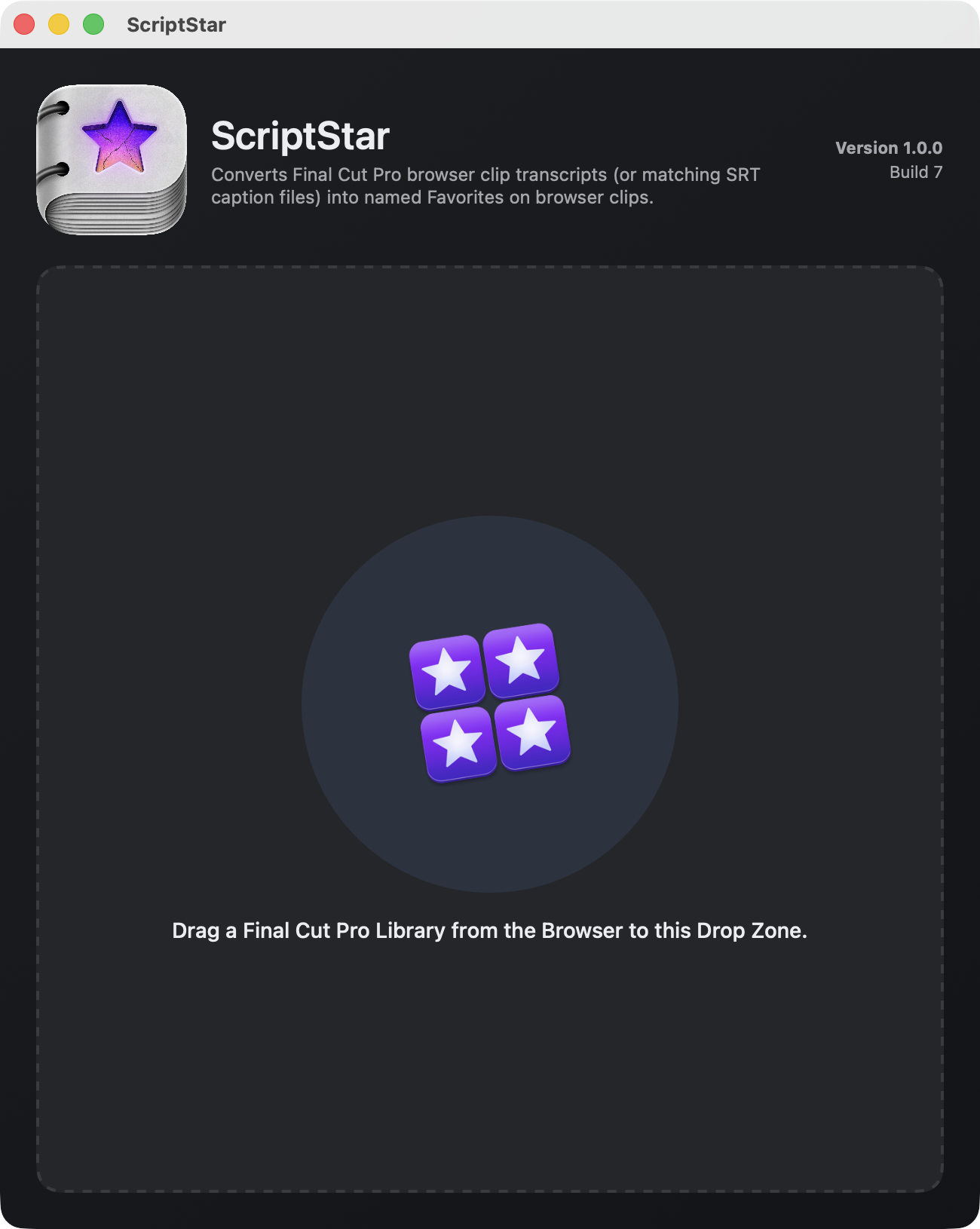
ScriptStar brings text-based editing to Final Cut Pro.
It was created by the amazing Iain Anderson.
This product uses LateNite's FCPXMLKit for FCPXML processing, created by David Peterson.
The ScriptStar icon was designed by the amazing Matthew Skiles.
You can watch the intro video on Vimeo:
It converts Final Cut Pro’s built-in transcripts into named favourite ranges on the same browser clips. This lets you see exactly what was said, instantly select it, and add it to your timeline.
To start, import your clips into a Final Cut Pro library as usual, and organize them into events if you like.
By default in Final Cut Pro v12 (lifetime/perpetual) and Final Cut Pro Creator Studio v12 (subscription), Transcribe in English is enabled by default.
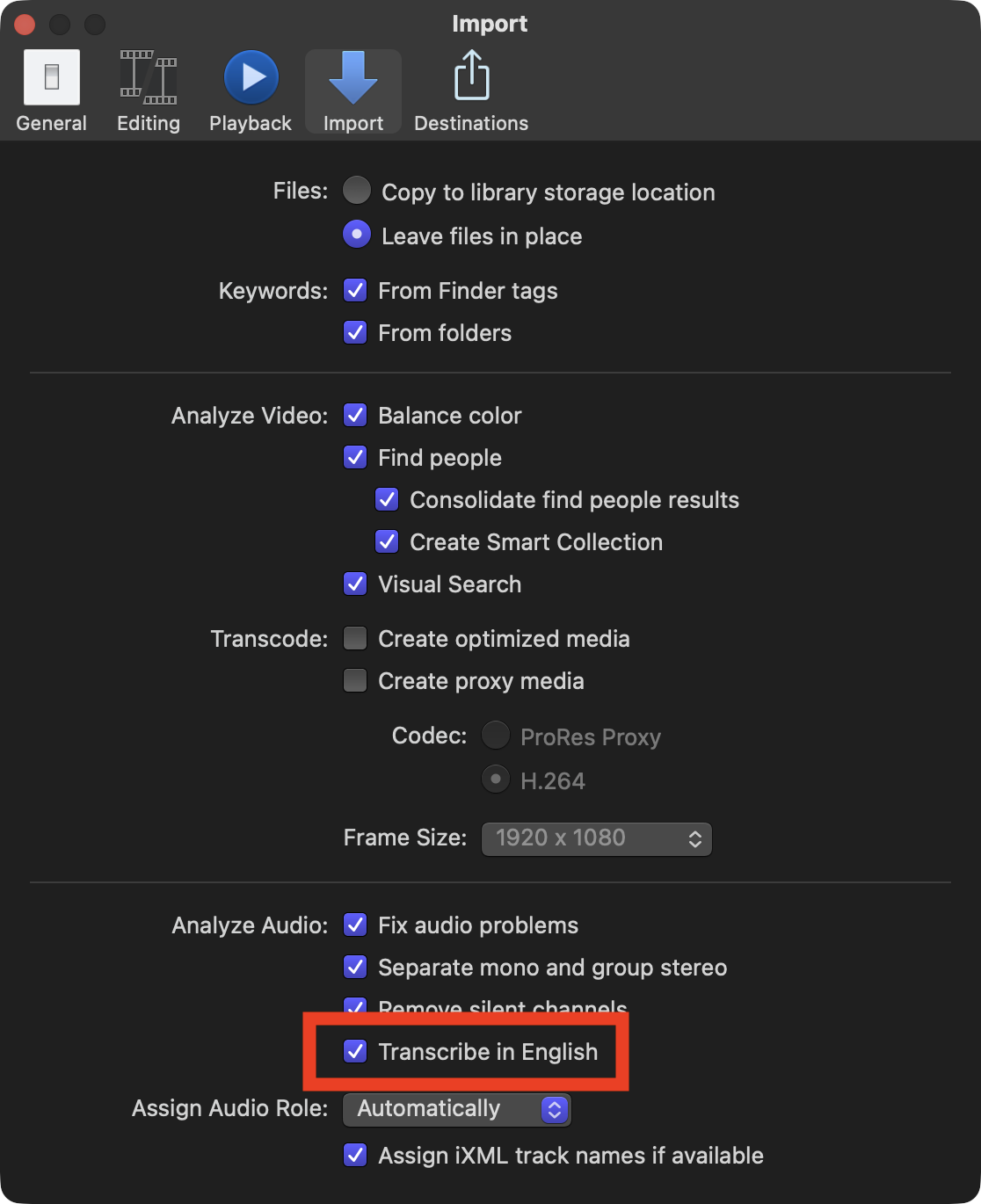
ScriptStar uses this transcription data. However, if you didn't transcribe your clips on import (which will be the case if your library was created before FCP 12) then you can transcribe them now. Select one or many clips, right-click, choose Analyze and Fix, and check Transcribe in English in the dialog that appears.
However, If you'd prefer to use your own transcripts, which is necessary for non-English captions, you can provide an SRT file that will be used in place of the built-in transcripts.
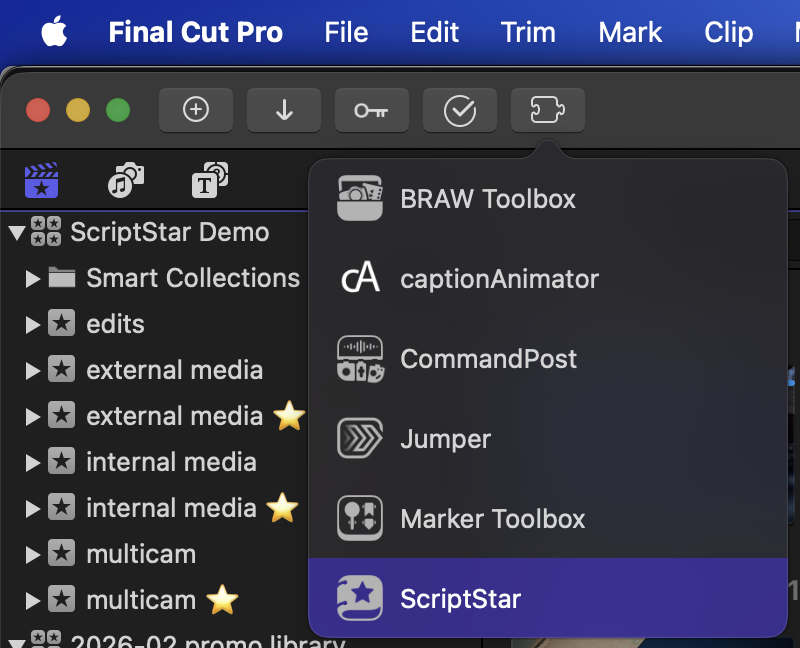
With clips transcribed, you can now launch ScriptStar from either your /Applications folder, or via the Final Cut Pro Workflow Extensions button in the toolbar and menubar.
Once launched, simply drag your Final Cut Pro Library from the Final Cut Pro Browser interface into the drop zone in ScriptStar to get started.
Due to sandbox requirements, if this is the first time you have worked with this Library, you will also have to give permission to access it.
To confirm, you need to drag the Final Cut Pro Library from the Final Cut Pro interface, and NOT Finder.
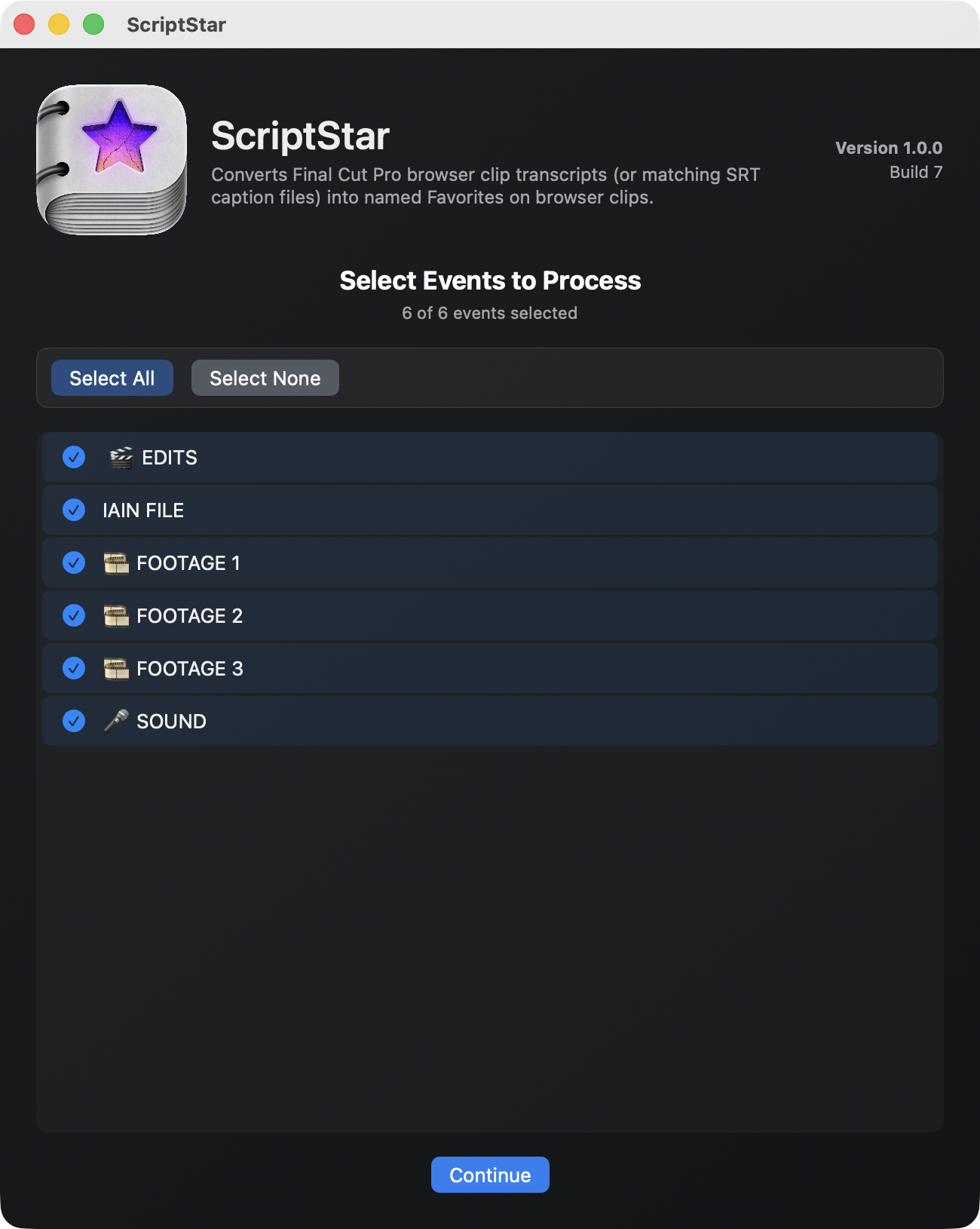
Choose the events you want to process, then press Continue.
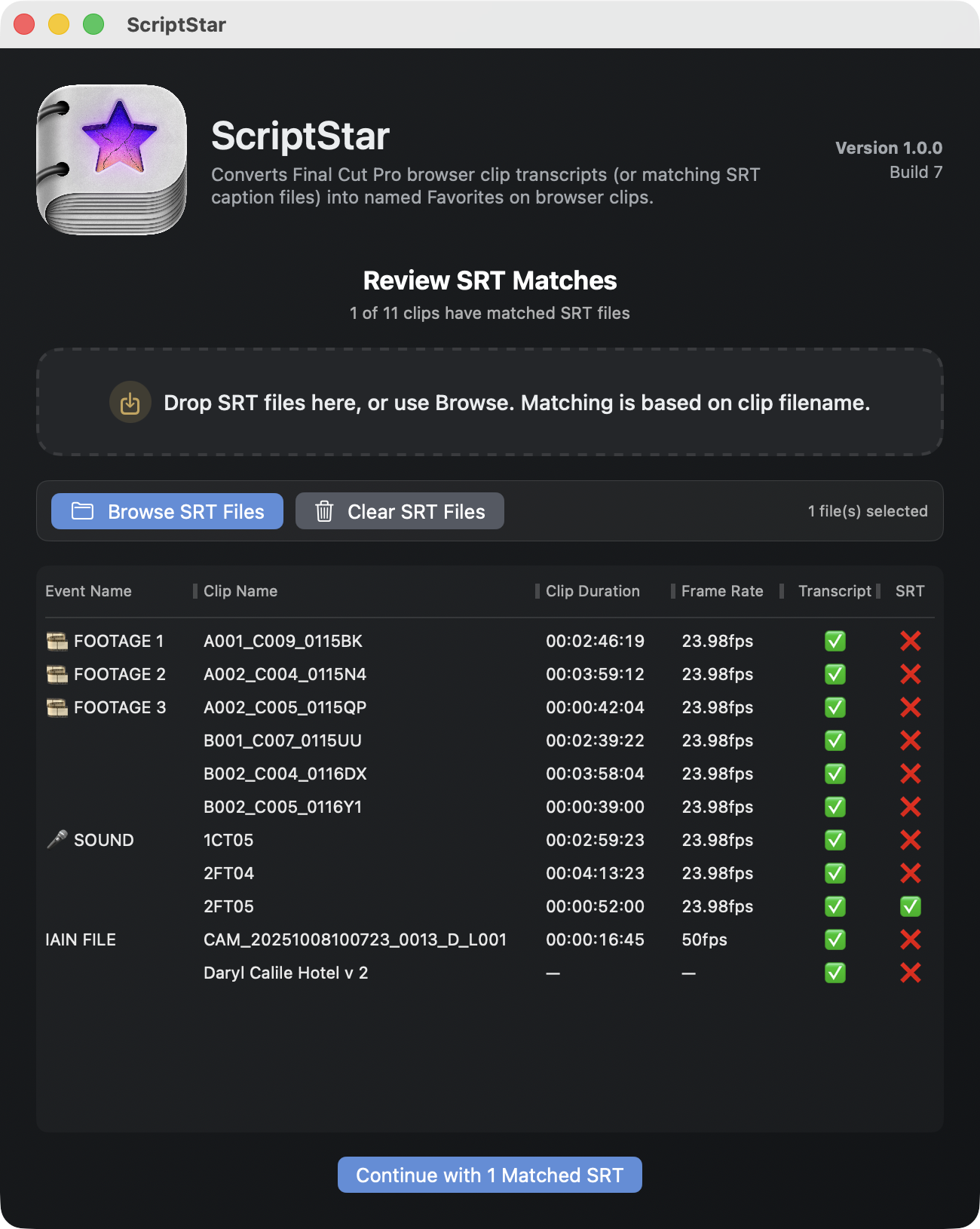
At this point you can replace any of the built-in transcripts by dragging in SRT files that match the names of any of your existing clips.
This is great for foreign languages, if you’ve had clips transcribed or edited by humans, or if Final Cut Pro’s transcript hasn’t worked or has poor results.
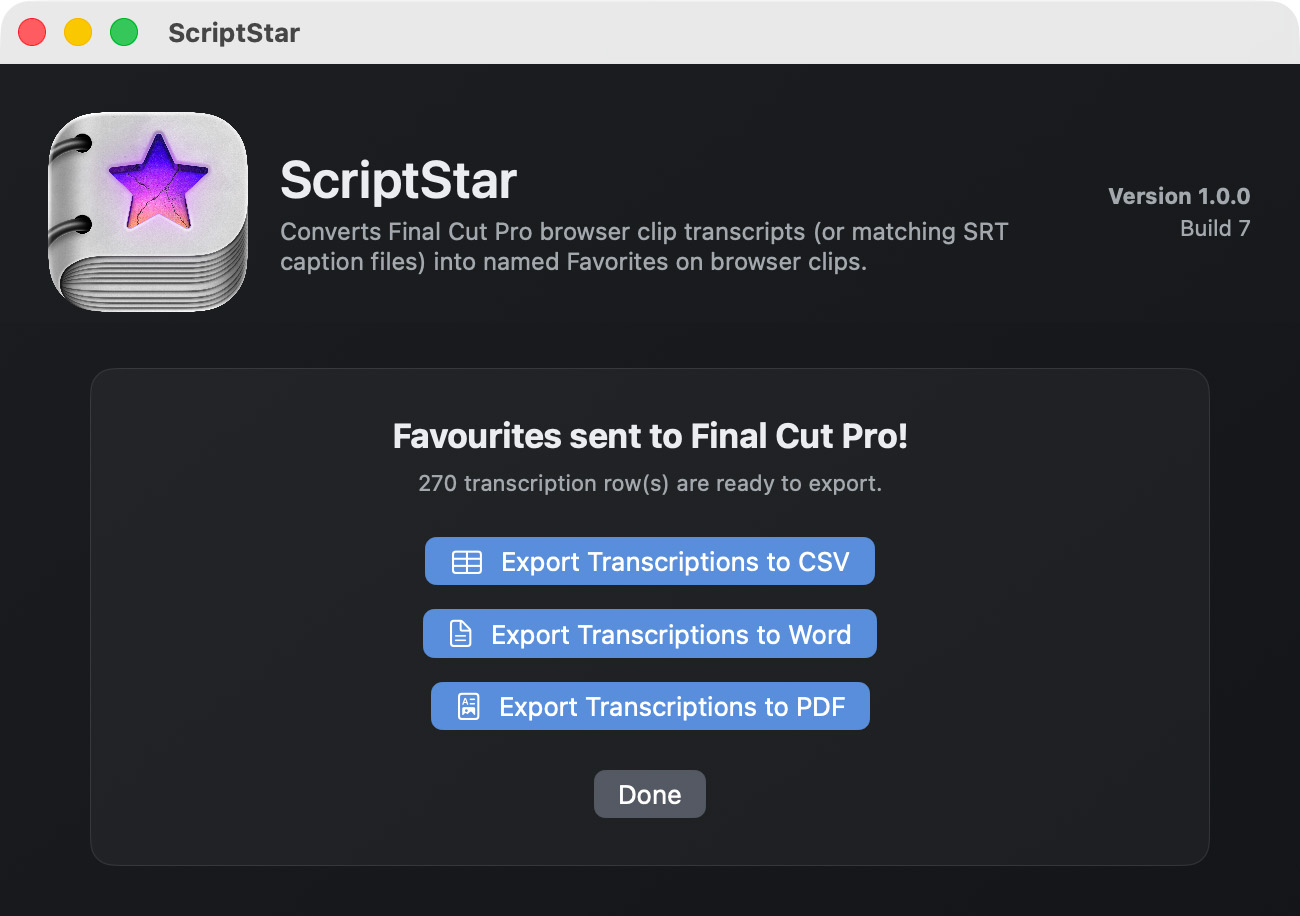
Press Continue to send the named favorites back to Final Cut Pro.
They'll appear in new events with a star at the end of the name.
Before you leave ScriptStar, there’s one more optional step.
If you want to send your clients a timed transcript, so they can highlight the most important phrases in interviews, or if you'd found it useful yourself, you can now export those transcripts in whatever format suits your workflow.
Formats include CSV, Word and PDF.
Back in Final Cut Pro, look for the events with the star in the name, and twirl each clip’s disclosure triangle to see every line of transcribed dialogue.
Select a line, play it back by pressing / (slash), then drag it to a timeline or tap E to append it.
The transcript search in Final Cut Pro still works, but if you want to search through the named favorites, choose Favorites in the Clip Filtering menu. If you don't do this, searches return the entire source clip.
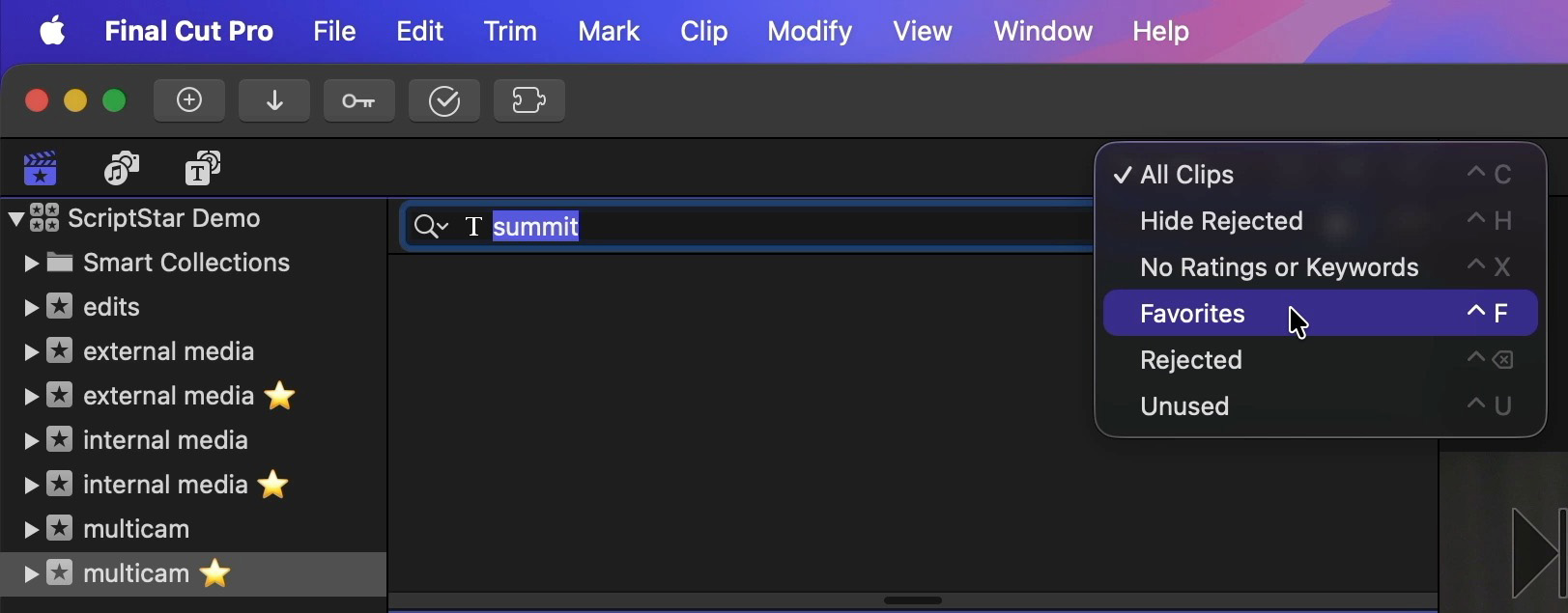
Scriptstar works with regular clips and Multicam clips, and it's a great way to find not just dialogue, but anything said out loud during a shoot.
If something great just happened, or there's anything else you need to remember, say it out loud and you'll see it in your Browser during the edit.
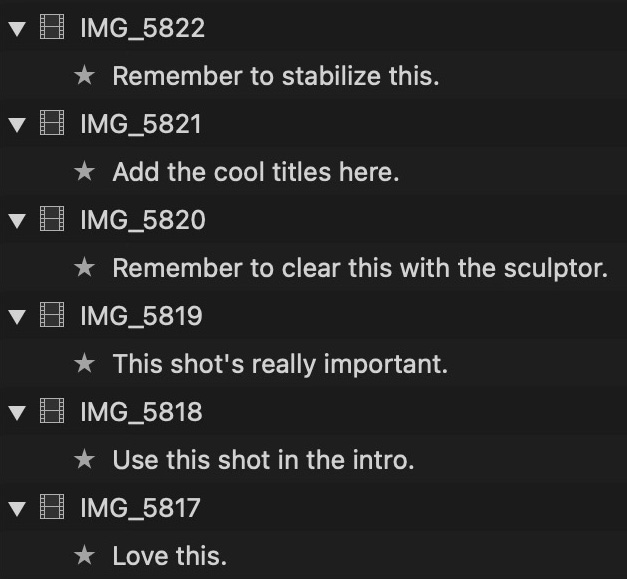
You can learn more on the ScriptStar website.